How to Share Your iTunes Library
Matt Cone June 12, 2012 Tutorials Mac Music
Did you know that you can share the music, movies, books, and podcasts on your Mac with the other users connected to your network? You can. All you have to do is enable a couple of settings in iTunes. It’s an ideal way to let others access your multimedia content, and it’s a solution that works in homes, dormitories, workplaces, and even schools.

Here’s how to do it:
Open the iTunes application.
From the iTunes menu, select Preferences.
Click Sharing. The window shown below appears.
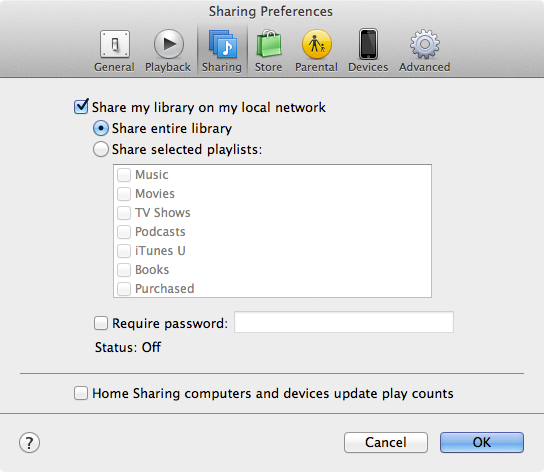
Select the Share my library on my local network checkbox.
To share everything in your iTunes library, select Share entire library.
To share only certain playlists, select Share selected playlists, and then select the playlists you want to share. This is a good way to limit access to certain content. For example, you could share your music, but not your movies. Or if you’re a teacher, you could create a playlist for the content in your lesson plan that week.
To require a password for access, select the Require password checkbox, and then enter a password. With this feature enabled, users who want to access the content in your library will be required to provide the password.
To allow other users to update the play counts of songs in your library, select the Home Sharing computers and devices update play counts. Now every time a user listens to a song, the play count will be updated.
Click OK to save the changes and turn on sharing.

Now others will be able to listen to the music on your Mac. One important thing to keep in mind is that other people can only listen to your music. They cannot copy the songs on your Mac to their computer.
Another important thing to keep in mind is that sharing is now enabled whatever you go, on whatever network you happen to be connected to. If you take you MacBook Pro to a cafe, for example, other people in the cafe will be able to listen to your music. You’ll have to remember to disable sharing if you only want to share your library on certain networks.