How to Create an iTunes Playlist
Matt Cone February 7, 2013 Tutorials Mac Music
If you’re like me, you have thousands of songs in iTunes. It’s nice to have all of that music available at the click of a button, but different times and situations call for different types of music. For example, you might listen to Metallica and AC/DC during your lunch break and Bach and Brahms in the evening before going to sleep.
That’s where playlists come in. Playlists are customized collections of songs that can be played on your computer, transferred to iOS devices, or burned to CD (see How to Burn a Music CD in iTunes). You can make as many playlists as you like!
Here’s how to create a playlist in iTunes:
Open iTunes. (It’s in your Applications folder.)
From the File menu, select New, and then select Playlist. Or just press
Command-Nin iTunes.The new playlist is created and displayed in a right-hand sidebar, as shown below. This is where you’ll drag songs, albums, and artists to add them to the playlist.
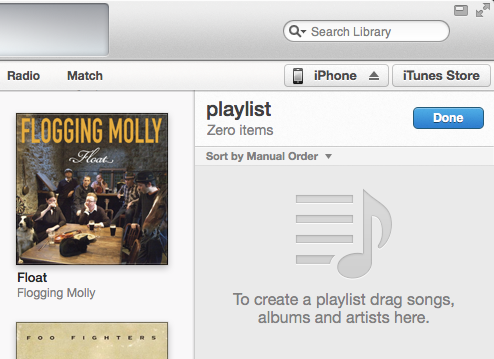
Now you need to find music to add to your playlist. You can sort your library by selecting an option at the top of the iTunes window. (For instance, Songs, Albums, Artists, etc.) Don’t worry - the playlist sidebar will stay visible until you have finished adding music.
Drag the songs, albums, and artists you’d like in the playlist from your library to the playlist, as shown below.
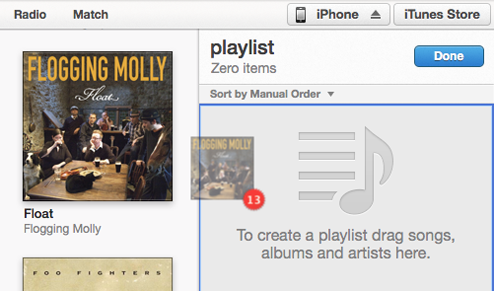
Keep adding music to your playlist. You can add as much as you want. To tell how much music is in your playlist, keep an eye on the playlist pane, as shown below.
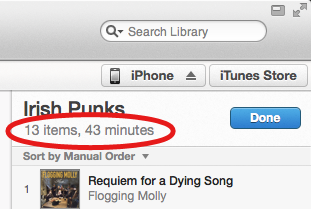
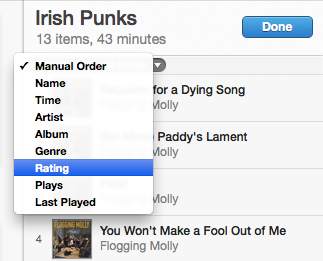
Feel free to rearrange the songs in your playlist. Drag and drop songs to reposition them in your list. iTunes will play tracks in the order they appear in your playlist. Or, if you’d like to have iTunes automatically sort the playlist based on rating, artist, or another variable, select an option from the Sort by menu, as shown below.
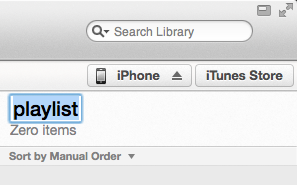
To rename the playlist, click once on the playlist’s title and then start typing in a new name, as shown below.
When you’ve finished creating your playlist, click Done. iTunes saves the playlist.


Your new playlist will always be available from the iTunes sidebar. (To show the sidebar, select Show Sidebar from the View menu.) To start playing it, just select the playlist and double-click the first track - iTunes plays all of the songs in the playlist from beginning to end.
Final Thoughts
Once you get the hang of creating playlists, use your imagination to organize your music. You could create customized playlists for working out, studying, or working in the office. Playlists can completely change the way you listen to your music!